
Onboard contact-center agents with task evidence, not login completion
Verify devices, access, workflow knowledge, dispositions and exception handling before an agent works independently.
Read the guide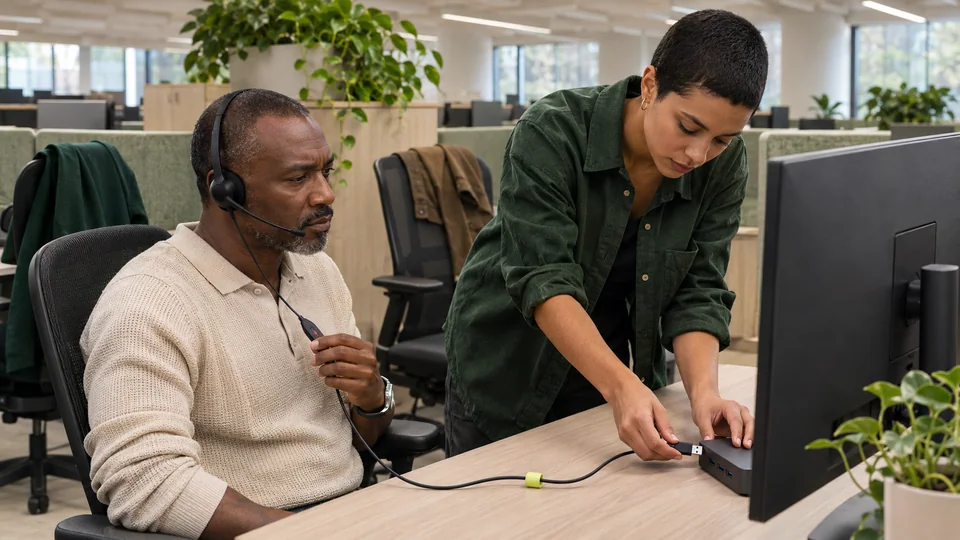
Validate microphone permissions, selected devices, mute behaviour, reconnection and real call audio before assigning a workstation.
An agent headset is ready when the browser has the intended input and output, permissions behave predictably and the real call remains usable through ordinary device changes. Test the workstation, browser, headset and network as one supported combination. A successful microphone permission prompt is not a completed audio test.
Part of our guide: Contact center software
Record operating system, browser version, headset connection type and the network arrangement. Include the extensions or desktop components required by your operation. Keep this as a supported configuration record rather than assuming all devices behave identically. A remote agent’s Bluetooth headset on a personal laptop may need different acceptance evidence from an office USB headset, even when both can join an initial demonstration call.
W3C Media Capture and Streams defines browser access to local media and permission-related outcomes. Ask the agent to grant permission normally, deny it, then recover using the documented support instructions. Confirm which microphone is active rather than accepting the system default blindly. Check output selection through the facilities the application and browser actually expose. A web page cannot assume it can silently choose every device or bypass permission.
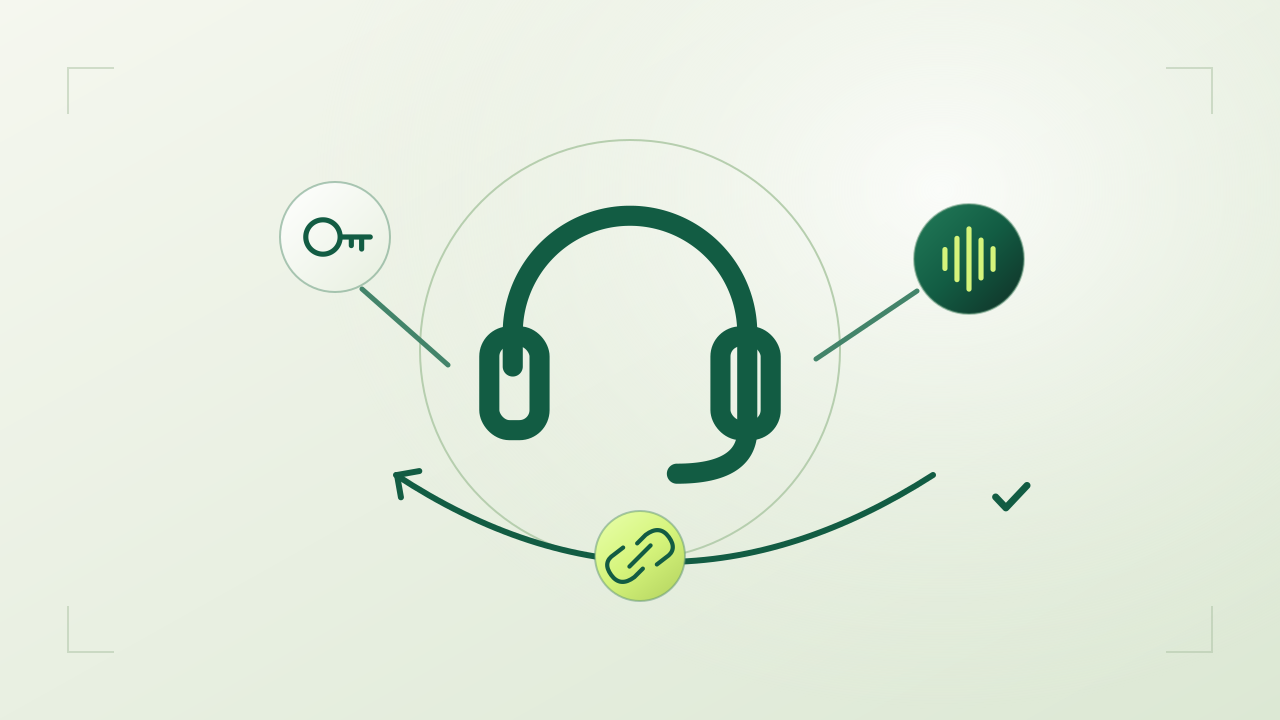
Test the supported workstation combination end to end.
Use authorised test calls to check ordinary speech, quiet speech, interruption and the agent turning away from the screen. Let each party describe what they hear. Review clipping, echo, background noise and unintentionally active laptop microphones. A local recording or visual input meter helps diagnosis but does not prove that the carrier-side caller receives usable audio. Test the operational path the agent will actually use.
In a fictional shared desk, an agent disconnects a headset during a break and another agent signs in with a different model. Test whether the expected device is selected, whether the interface explains a missing microphone and whether a new call can be handled safely. The correct result may require the documented recovery step. Do not label a silent call acceptable because the browser still shows a connected session.
Verify application mute and headset hardware mute independently, including how their states are communicated to the agent. Test unplugging and reconnecting when no customer is affected, and inspect what happens if another application uses the microphone. Include browser refresh and a temporary network interruption within an agreed test scope. Record whether an in-progress call survives, ends or requires recovery; promise only the behaviour demonstrated.
Give agents clear steps for device checks, permission recovery and when to stop taking calls. Assign support ownership for endpoint, network and platform issues. Keep the evidence with the workstation combination and retest affected items after meaningful browser or device changes. DialerBee advertises a browser WebRTC softphone, but actual device suitability still needs acceptance. A repeatable support card reduces guesswork without claiming that one headset works universally. Add a pre-shift check using an approved sample route, especially at shared desks. Require agents to stop and report an unexplained audio failure rather than repeatedly calling customers while changing devices. Record the fix so support can recognise the same workstation issue later.
No. It shows a local observation; the complete media path still needs a two-party call test.
Do not design around bypassing permission. Explain the required permission and offer a clear recovery or alternative route.
Prepared by the ContactCenter.me editorial team, a BroadNet resource powered by DialerBee. Product statements reflect the linked documentation checked 2026-11-25. Operational examples are planning guidance. Read our editorial standards and commercial disclosure.
Track the practical work needed before moving queues, numbers, agents and workflows.
Build a weighted quality scorecard and export a reusable review template.

Verify devices, access, workflow knowledge, dispositions and exception handling before an agent works independently.
Read the guide
Build an outbound operating process with approved contact sources, suppression, time-zone handling, caller ID, retry limits and reviewable evidence.
Read the guide
Evaluate caller ID as a complete operational process rather than a number displayed on an outbound call.
Read the guideExplore your requirements with a DialerBee specialist. Bring your workflows, your carrier, and your questions.